Git and Github

Git is a free and open source distributed version control system designed to handle everything from small to very large projects with speed andefficiency.
Tested on macOS Sonoma 14.0
THIS PAGE IS CURRENTLY UNDER CONSTRUCTION
Installing Git and Adding SSH Key for GitHub (macOS)
Step 1: Install Git
-
Open
Terminal.For more information please see:
How to open terminal in macOS -
Check if Git is already installed by running the following command:
console$ git --versio > git version 2.33.1If you see the Git version information, skip to Step 2: Generate SSH key. Otherwise, continue to the next step.
-
Install Homebrew
How to Install Homebrew on macOS💡If you already have
Homebrewinstalled on your macOS, you can skip this step. -
Once Homebrew is installed, run the following command to install Git:
shbrew install git
Step 2: Generate SSH Key
-
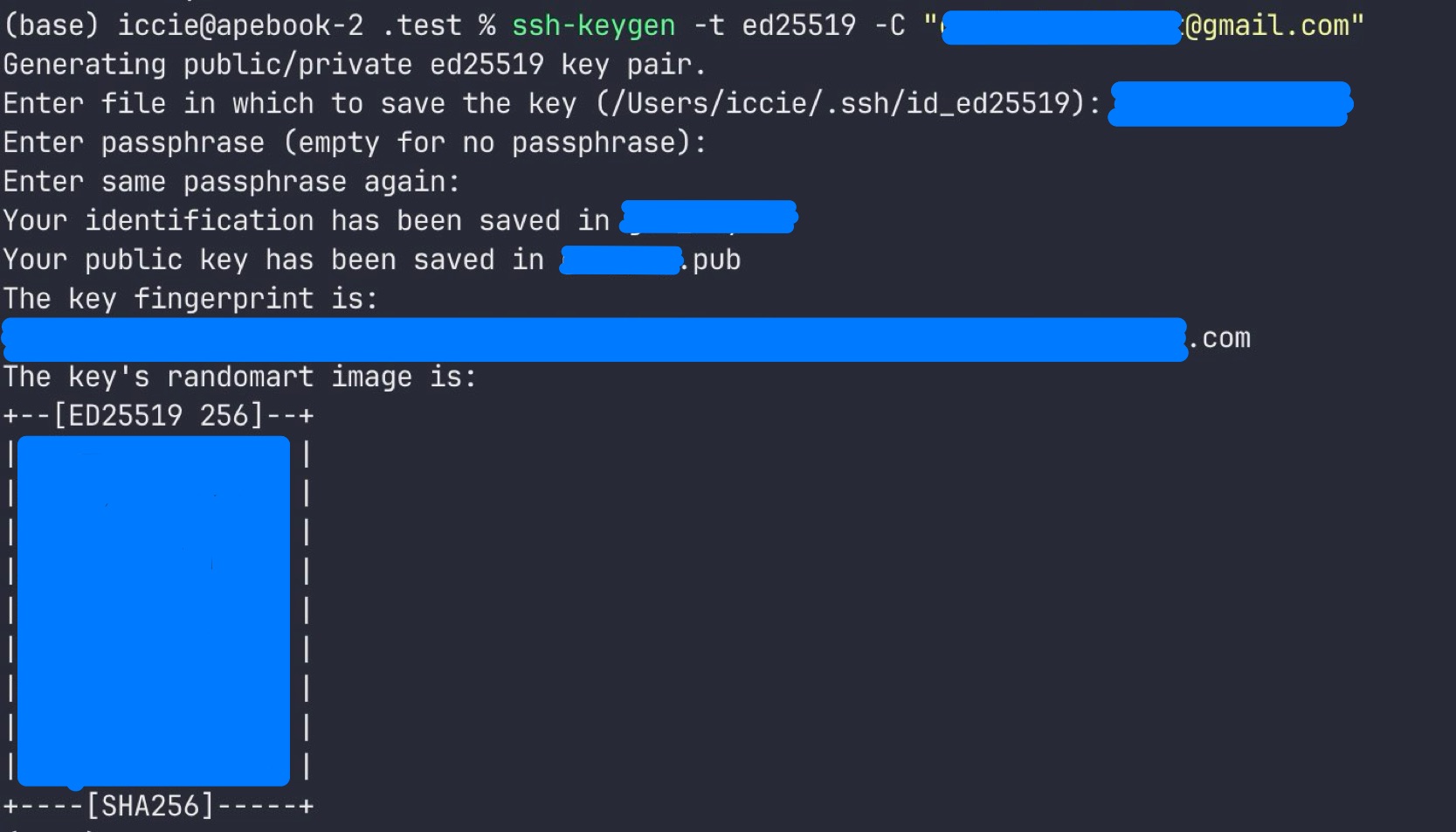
Run the following command to generate a new SSH key:
shssh-keygen -t ed25519 -C sample@mail.com💡Replace
sample@mail.comwith your own email address associated with your GitHub account. -
You will be prompted to enter a file in which to save the key. Press Enter to accept the default location.
Step 3: Add SSH Key to GitHub
-
Open a web browser and go to GitHub (opens in a new tab).
-
Click on your profile picture in the top-right corner

then select
Settingsfrom the dropdown menu.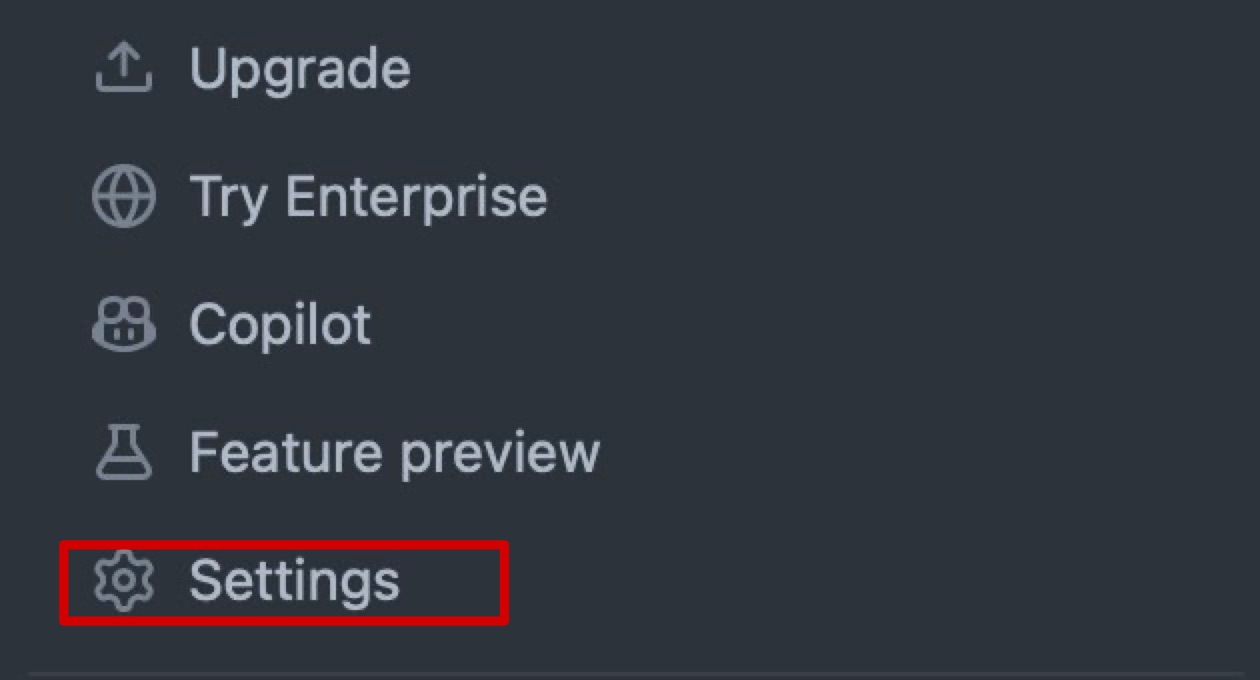
-
In the left sidebar, click on
SSH and GPG keysClick on theNew SSH key.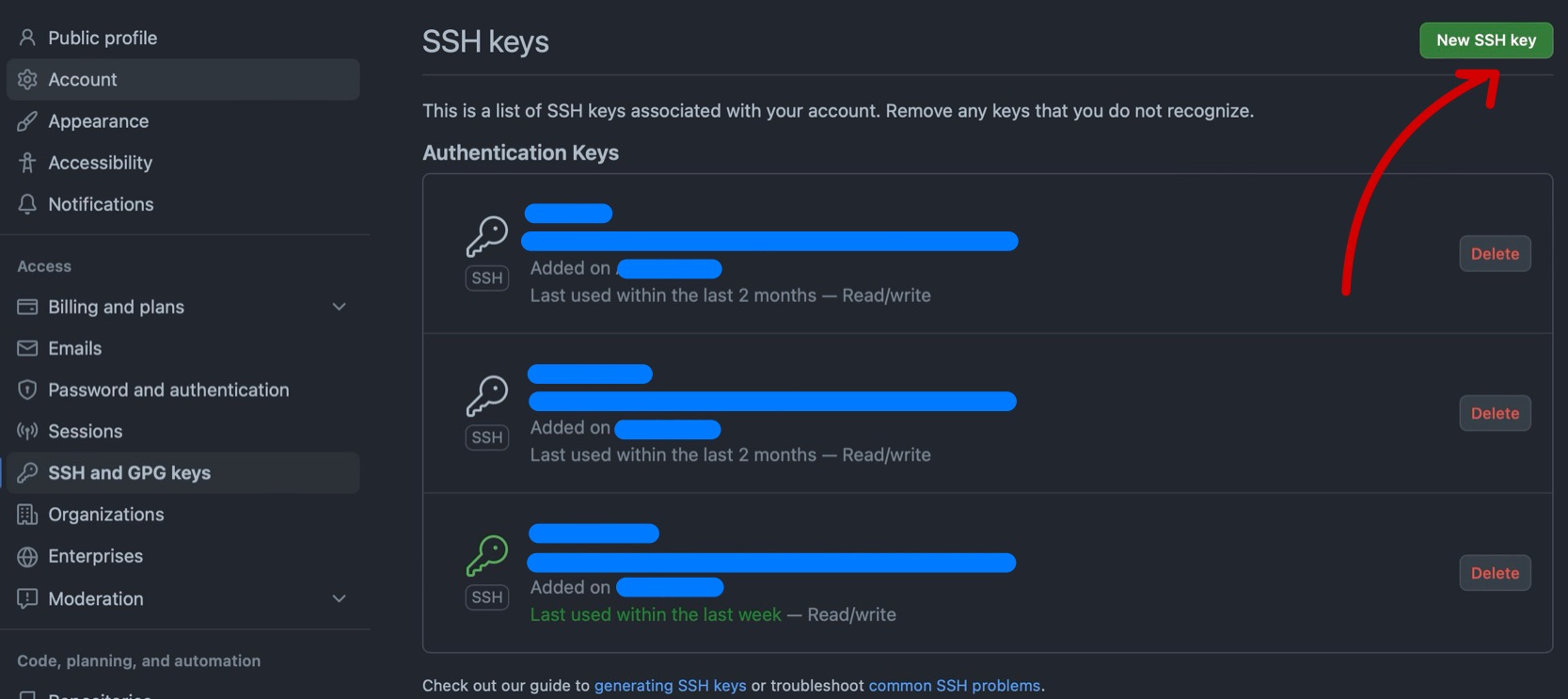
-
Switch to the Terminal application and run the following command to copy your public SSH key to the clipboard:
shpbcopy < ~/.ssh/id_ed25519.pubOR you can run the following command to print the key to the Terminal and copy it manually:
shcat ~/.ssh/id_ed25519.pubYou should see a message like:
console$ cat ~/.ssh/id_ed25519.pub > ssh-ed25519 your_key...blablabla your.mail@example.com -
Return to the browser and paste the copied key into the
Keyfield on the GitHub website. -
Click the Add SSH key button to save the key.
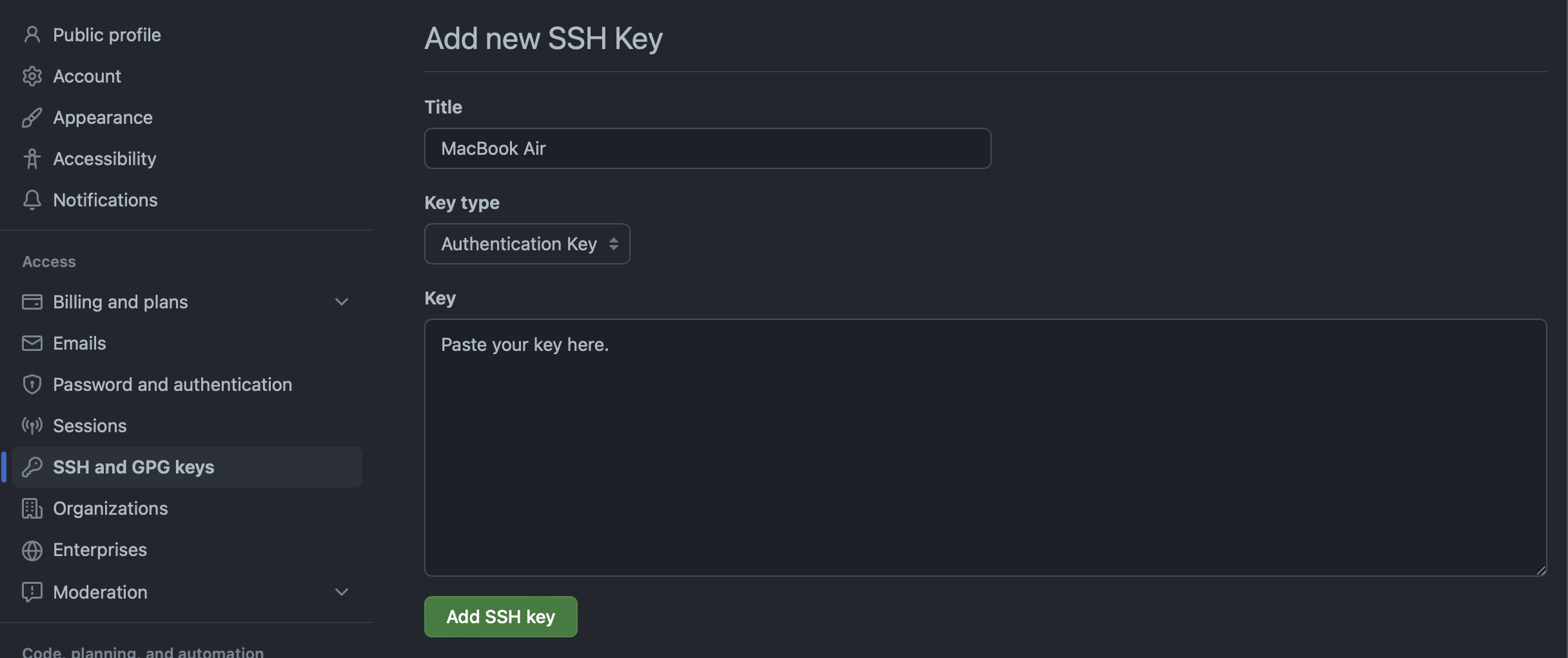
You have successfully added your SSH key to your GitHub account.
Additional: Test SSH Connection
-
In the Terminal application, run the following command to test the SSH connection with GitHub:
shssh -T git@github.com -
You may see a warning message about the authenticity of the host. Type "yes" to continue.
-
If everything is set up correctly, you should see a message like:

In this case
AppleBoiyis my GitHub username. You should see your own username instead.
References
| Source | Description |
|---|---|
| How to Install Git on Mac (opens in a new tab) | Atlassian tutorial on installing Git on macOS |
| Generating a new SSH key and adding it to the ssh-agent (opens in a new tab) | GitHub documentation on generating a new SSH key and adding it to the ssh-agent |
| Adding a new SSH key to your GitHub account (opens in a new tab) | GitHub documentation on adding a new SSH key to your GitHub account |
| Testing your SSH connection (opens in a new tab) | GitHub documentation on testing your SSH connection |